How To Record Phone Calls on a Samsung Galaxy Phone?

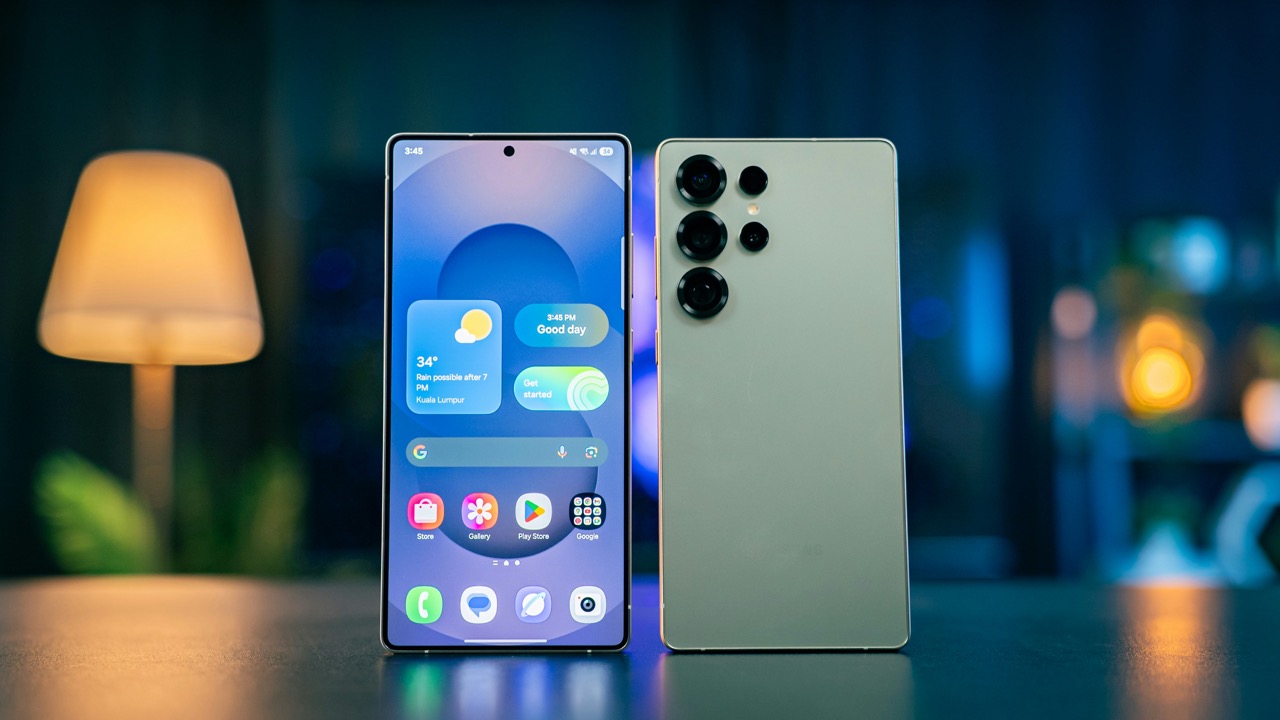
Call recording can be very helpful if you have to recall important information, such as instructions, addresses, or office conversations. Samsung Galaxy smartphones have a built-in call recording feature that lets you record phone calls without downloading any additional apps. Before you begin recording calls, be aware that this feature is only available in countries where call recording is permitted, so it may not be available on all phones. For instance, call recording is permitted without consent in India, but in most of Europe and the US, consent is required from all parties involved in the call. Moreover, it also doesn’t work for Wi-Fi calls.
1. Record a Call on a Samsung Galaxy Phone
You can record a call on your Samsung Galaxy phone only after the call has been initiated. Follow these simple steps to record a call on your Samsung Galaxy phone:
- Make a phone call using the Phone app on your Samsung Galaxy phone.
- During the active call, check the call screen for the Record call button.
- If you don’t see it, tap the three-dot menu to find the recording option.
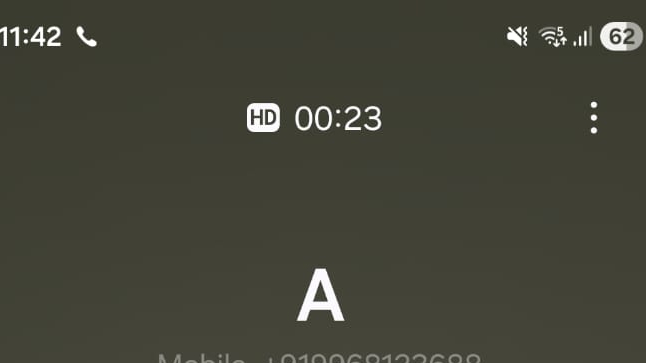
- Tap Record call to start recording the conversation.
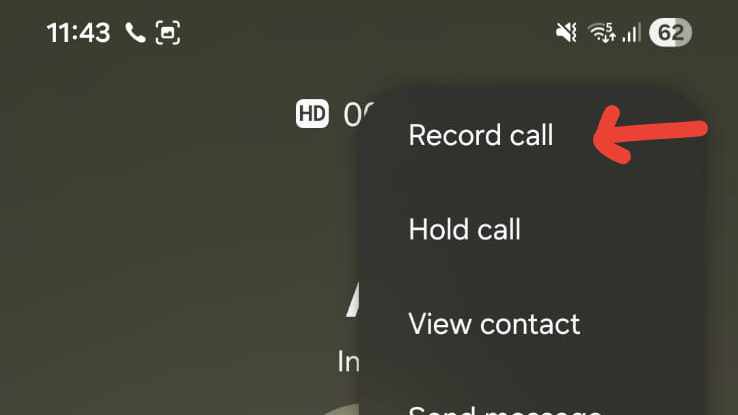
- The phone displays a red dot and a timer to show that it is recording the call.
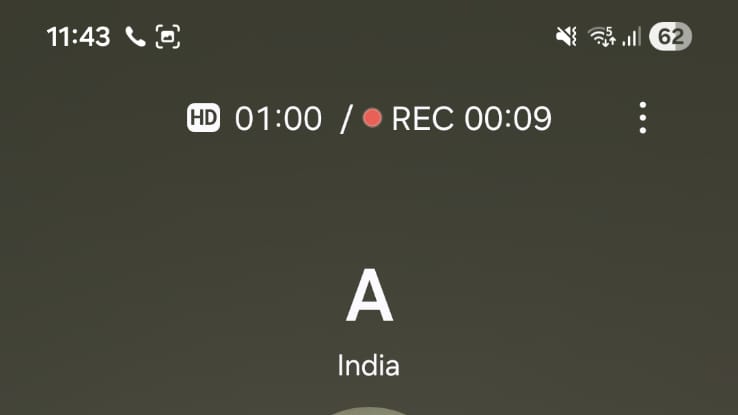
- To end the recording, tap Record call again or end the call.
2. Automatically Record Calls on a Galaxy Phone
This function records calls without having to press the record button each time. Follow these easy steps:
- Open the Phone app on your Samsung Galaxy phone.
- Go to the Keypad section.
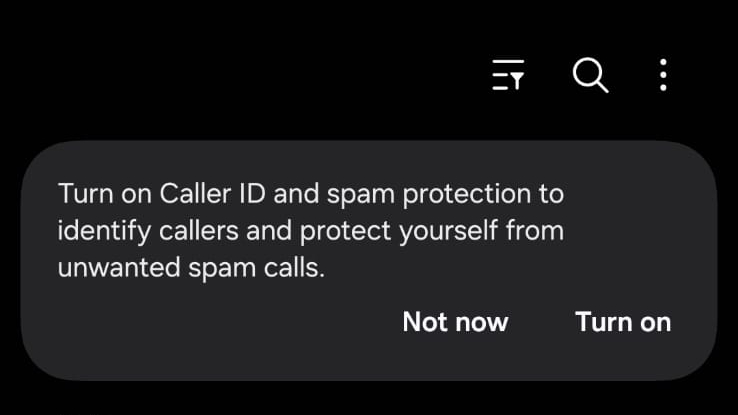
- Tap the three-dot menu at the top and select Settings.
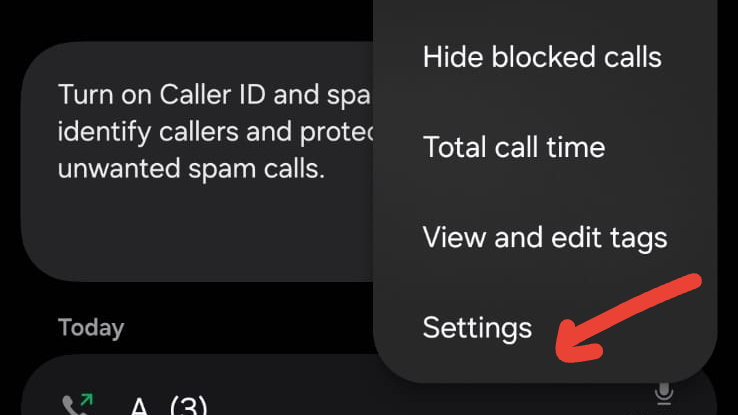
- Tap Record calls.
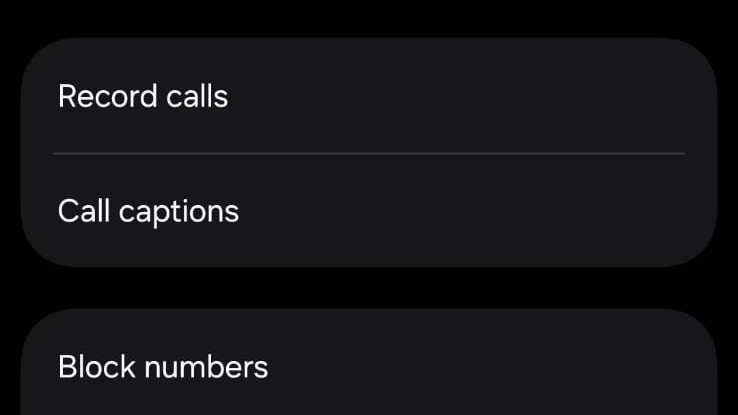
- Turn on the Auto record calls option.
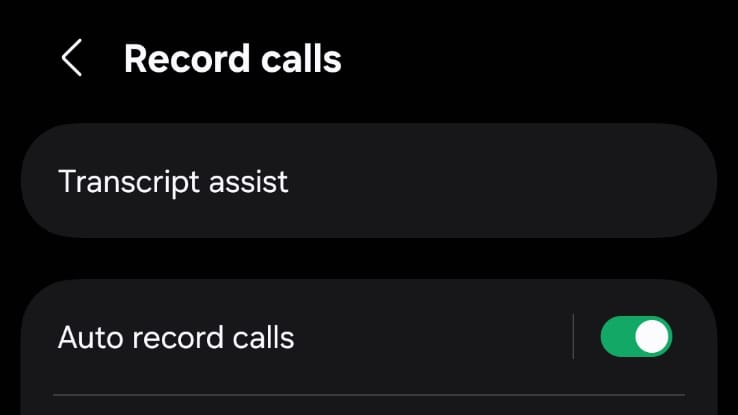
When auto call recording is enabled, Samsung automatically records all calls, including calls from unknown numbers. But you can adjust this preference if you do not want all calls to be recorded automatically. Samsung gives you the flexibility to choose whether to record all calls, unsaved numbers only, or calls from selected contacts. To record calls from selected contacts, you only need to include their numbers in your contact list under the auto-record options.
3. Record Calls Using Google Voice on Samsung
If call recording isn’t available on your Samsung device, you can use Google Voice to record calls made from your Google Voice number. Google Voice announces to all parties that the call is being recorded. The Google Voice app saves the recorded call in the Voicemail tab.
- Open the Google Voice app on your Samsung phone.
- Open the menu and go to Settings.
- Turn on Incoming call options.
- When you receive a call on your Google Voice number, answer the call and open the keypad.
- Tap 4 to start recording the call.
- Tap 4 again to stop recording.
How to Find, Listen to, and Share Recorded Calls?
Samsung saves all call recordings in one place, so you can easily find and manage them later. Here’s how to access recorded calls:
- Open Phone settings.
- Tap Record calls.
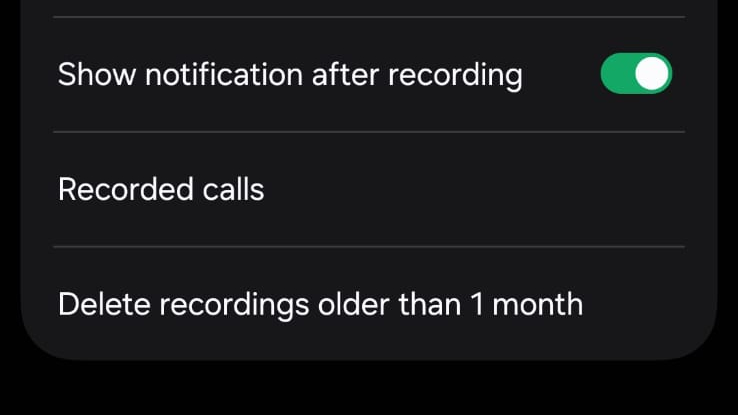
- Select Recorded calls.
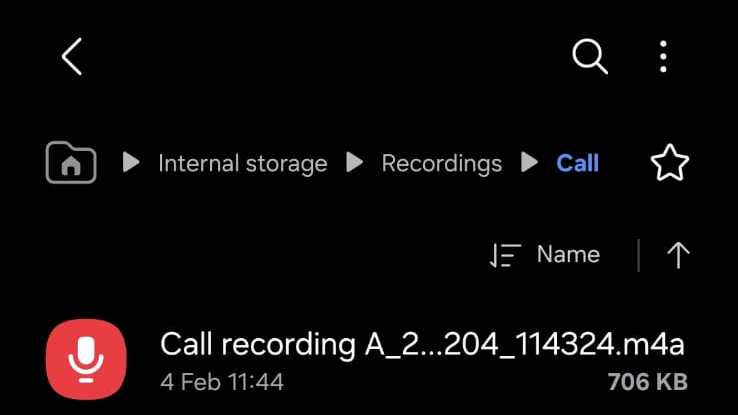
In the call recordings section, you will see all the recordings you have saved, typically in alphabetical order. You can change the list view to date, file size, or call recording. When you long-press a recording, you can rename it, move or copy it to another folder, delete it, or share it via messaging or email clients.
Is It Safe to Use Third-Party Call Recording Apps?
Most third-party call recording apps use accessibility services to record calls, and sometimes do so without informing the other party. Many regions prohibit this practice or consider it illegal, and it can violate local privacy policies. Due to these concerns, Samsung advises against using third-party call recording apps and instead recommends using the call recording feature if available.