How To Change Your Gmail Address Without Losing Data?

Changing a Gmail address has long been a challenge for users who did not want to lose their emails and Google data. For ages, Google wouldn’t let people with a @gmail.com address switch their email ID. Now that’s starting to change: Google is now rolling out a new option that lets you change your Gmail address while keeping all of your data intact.
Things to Consider Before Updating Your Gmail Address
Before updating your Gmail address, it’s better to understand how the new system works and what limitations apply:
- You can select a new Gmail username, and your previous email address will still be active.
- The newly added Gmail address serves as a linked alias to your original account.
- When e-mails are sent to both the old and new Gmail addresses, they go to the same inbox.
- After the change in email address is effected, it will not be editable or removable for a period of one year.
- Nothing changes; all your Google data will still be there, including your emails, messages, and Google Photos.
- You can use your old or new Gmail address to sign in to all the services in Google.
- Google allows users to change their Gmail addresses a maximum of 3 times.
How To Change Your Gmail Address
- Go to myaccount.google.com/google-account-email and sign in with your Google account.
- Look for the option to edit your Gmail address using the pencil icon.
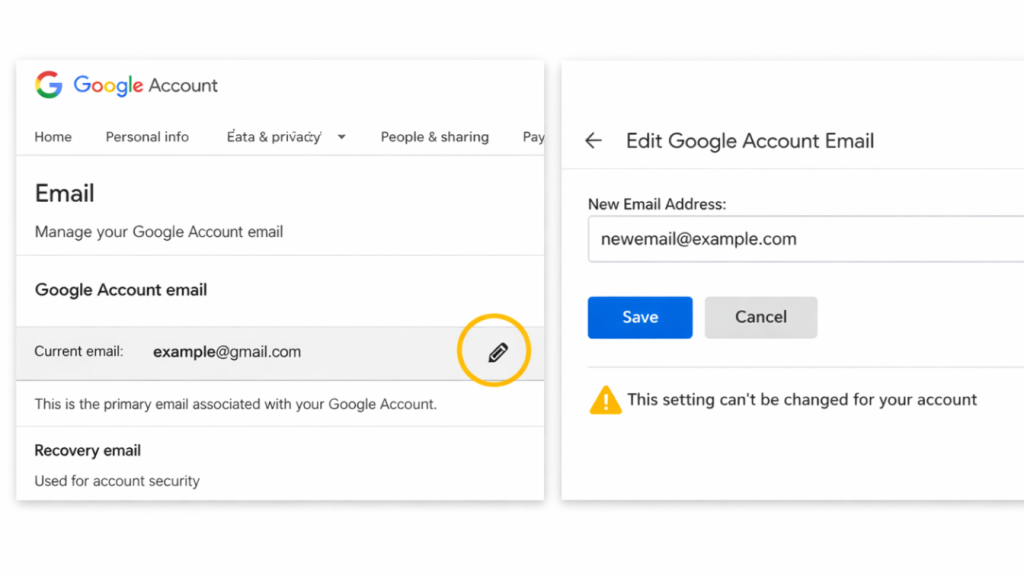
- If the edit option appears, you can proceed with changing your email address.
- If you see a message saying the setting cannot be changed, the feature hasn’t reached your account yet.
Feature Availability
The option to change a Gmail address is not yet available to everyone. The rollout is happening in phases, so some users may not be able to spot the edit feature even after poking around in account settings. In other words, Google is easing the rollout to ensure a smooth, global transition.