
Forgot Your iPhone Passcode? Here’s How to Use Recovery Mode

Forgetting your iPhone passcode or getting locked out after too many wrong attempts can be stressful, but there’s a straightforward solution. You’ll have to switch to recovery mode if you’re completely locked out of your iPhone. That can happen if you can’t remember your passcode, make too many wrong tries, or if your phone restarts and Face ID or Touch ID can’t help you unlock it. It also becomes necessary when you can’t use your previous passcode, since Apple only allows that option within 72 hours on newer iOS versions.
To begin, gather everything you need for recovery mode. First, keep a Mac or Windows PC near you. Next, connect your iPhone using a USB cable. Then open Finder on Mac or on Windows devices. Since this process erases your data, keep a backup ready. However, if you can’t arrange a computer, you’ll have to rely on help from an Apple Store or an authorised service provider.
Enter Recovery Mode
The first thing you need to do is power off your iPhone. To do this, press and hold the Side button and Volume Down button. When the slider appears on screen, slide it to turn off the device. Once done:
- Connect the cable to your computer first.
- Then plug the other end into your iPhone.
- Press and hold the Side button right away.
- Keep holding it until the recovery mode screen appears with a computer and cable icon.
- If your buttons don’t respond at all, your iPhone may need service.
Restore iPhone with Windows PC
- Open the Apple Devices app on your Windows PC.
- Choose your iPhone from the list.
- Tap Trust and go to the General tab.
- Select Restore and follow the on-screen instructions.
- The software download may take 15 minutes or more, so don’t disconnect your phone.
Restore iPhone with Mac
- Open Finder on your Mac.
- Click your iPhone under the Locations section.
- If a prompt appears, press Trust and follow any instructions.
- Select Restore to begin the process.
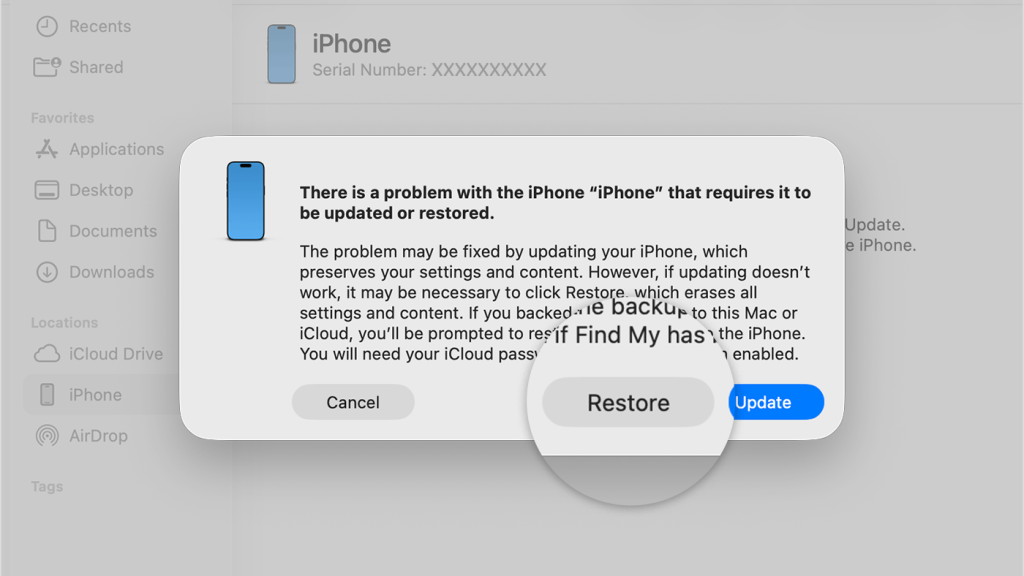
- If your Mac needs to download software, it can take 15 minutes or more.
- If your iPhone exits recovery mode during this time, reconnect and repeat the steps.
Complete the Setup Process
After your iPhone completes the restore, you’ll see the Hello screen again. Remove the cable and start the setup process. Log in with your Apple ID, set up Face ID or Touch ID, and adjust your settings. Finally, restore your information from either iCloud or your computer.
Make sure you back up your iPhone often so your data stays safe. Use a passcode that’s strong but easy for you to recall. Also, keep your passwords stored securely, either on another trusted device or in a password manager.